AIE-2 How Do I Create A New AI Powered Employee?
Welcome to the guide on how to create your first AI powered employee. Follow the instructions below to set up your AI employee and start enhancing your business operations.
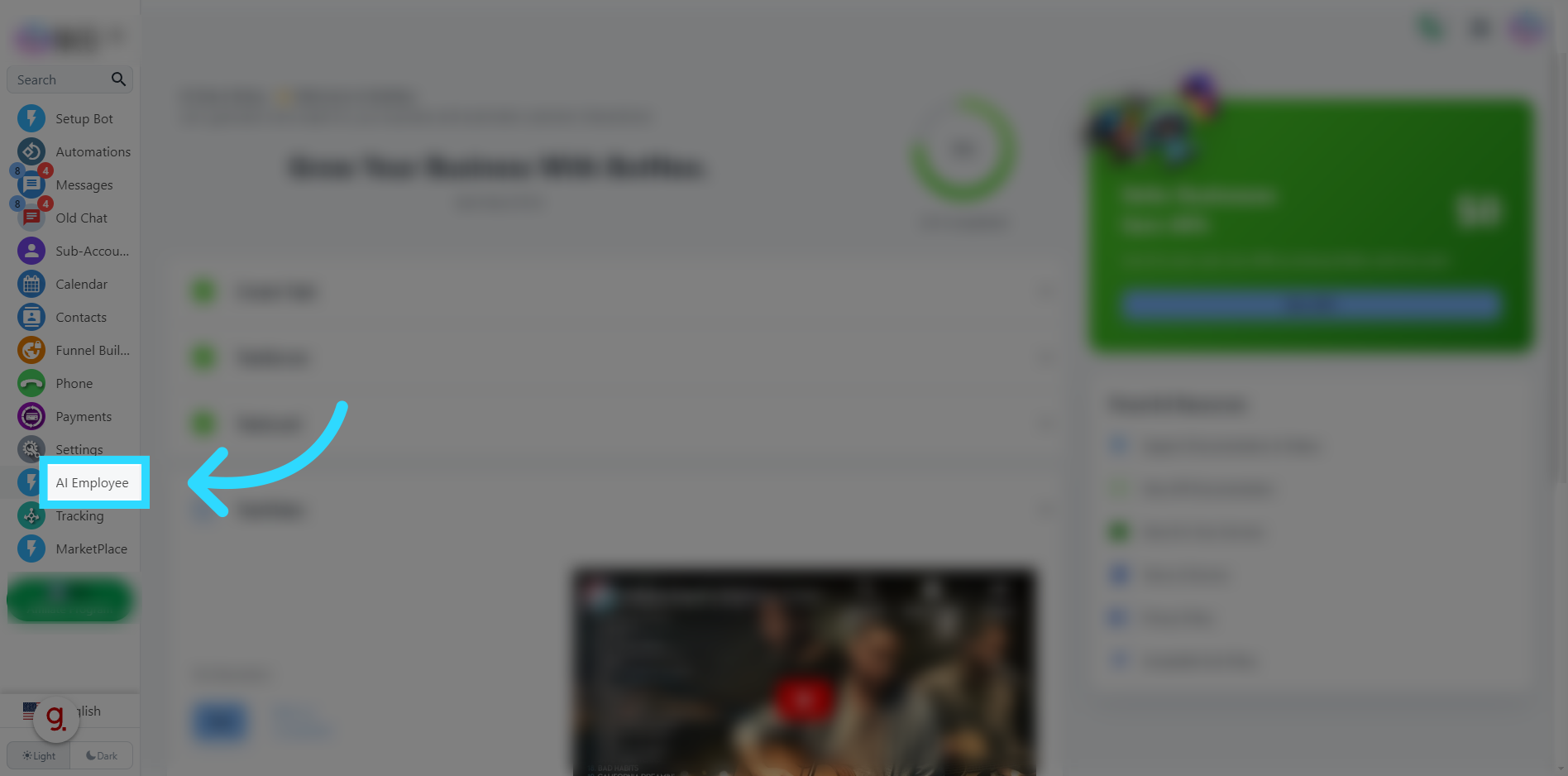
Click "AI Employee"
Click on the "AI Employee" on the menu bar
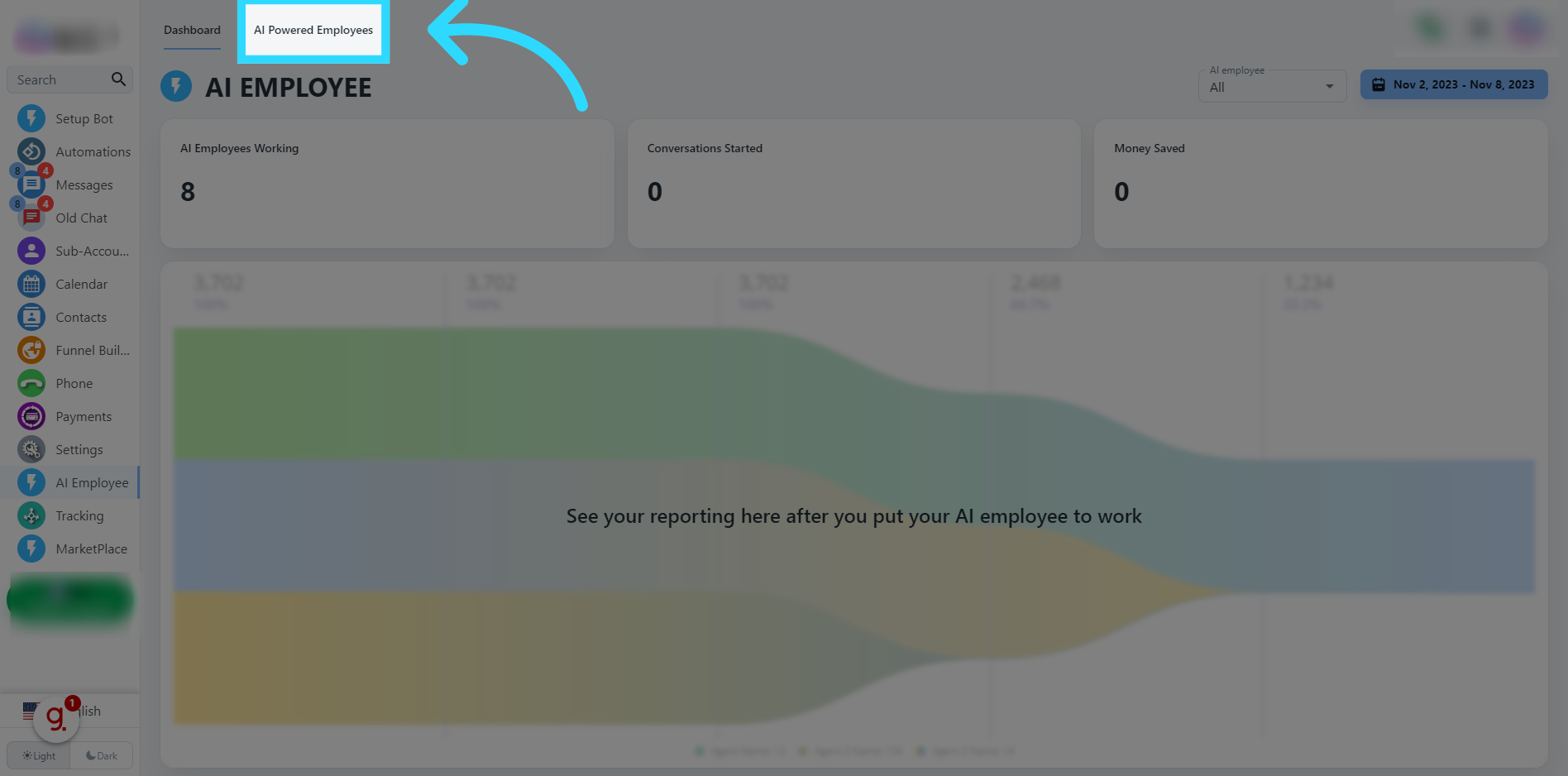
Click "AI Powered Employees"
Click on "AI Powered Employees" in the sub menu.
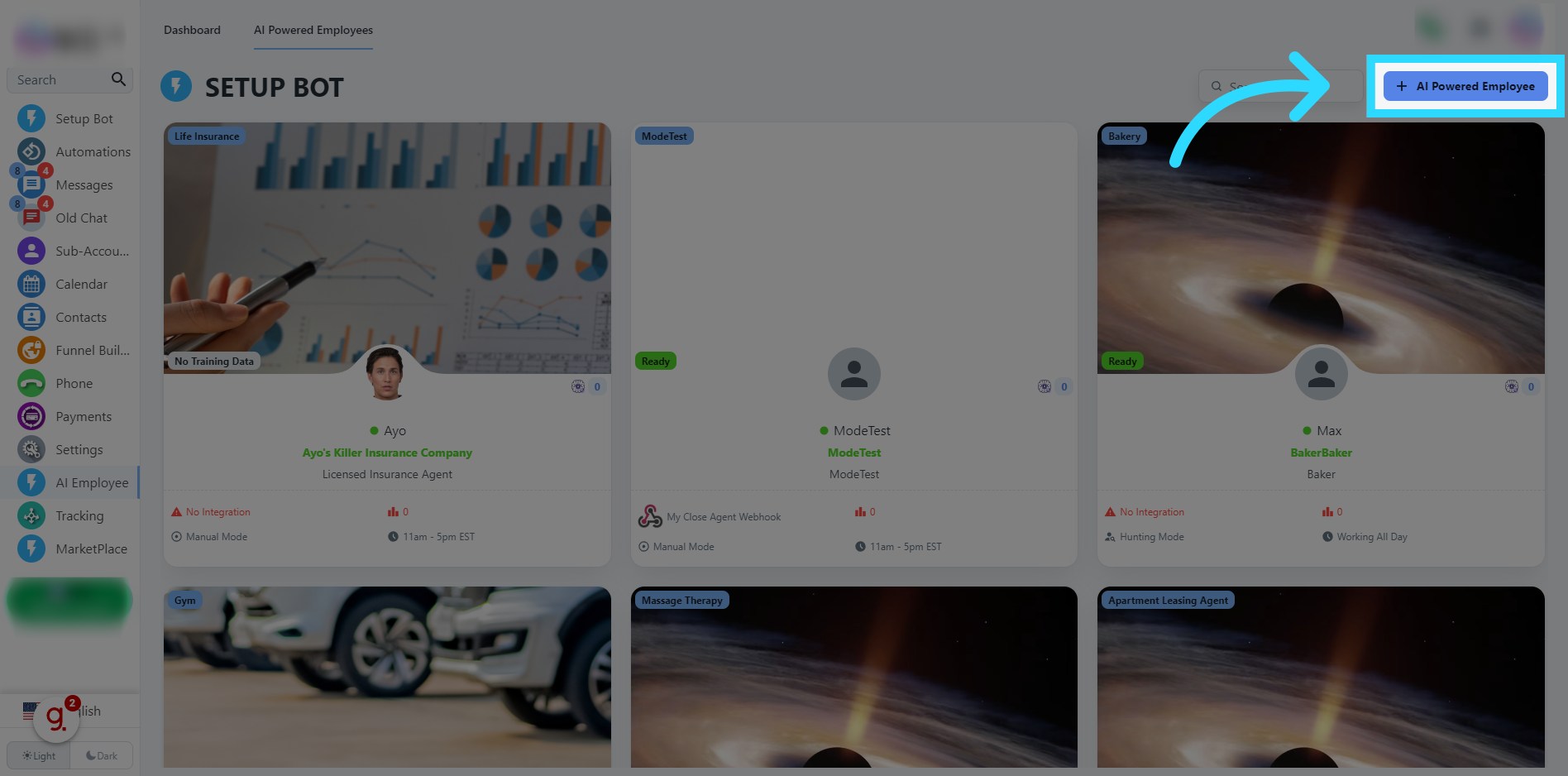
Click "AI Powered Employee"
If you have any employees already installed you will click Click on "AI Powered Employee" in the upper right corner. If not, a pop up will automatically open which is shown on the next screen.
Choose The Goal From The Drop Down Menu
Here you will have a list of many goals your AI employee can be assigned. If any are greyed out, it may require an upgraded subscription. Now choose the goal you want the AI Powered Employee to do.
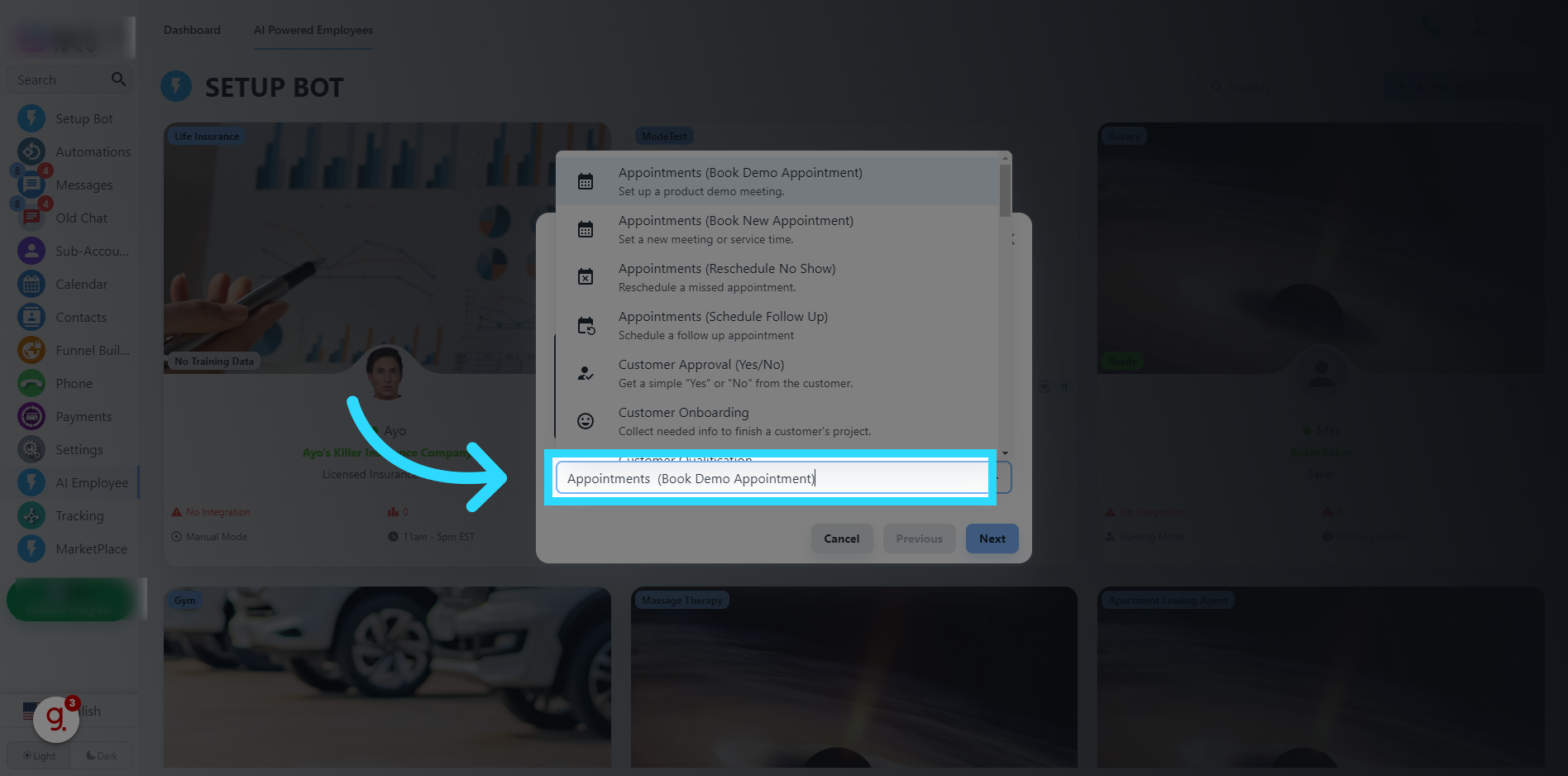
Click "Next"
Click on the "Next" button to continue.
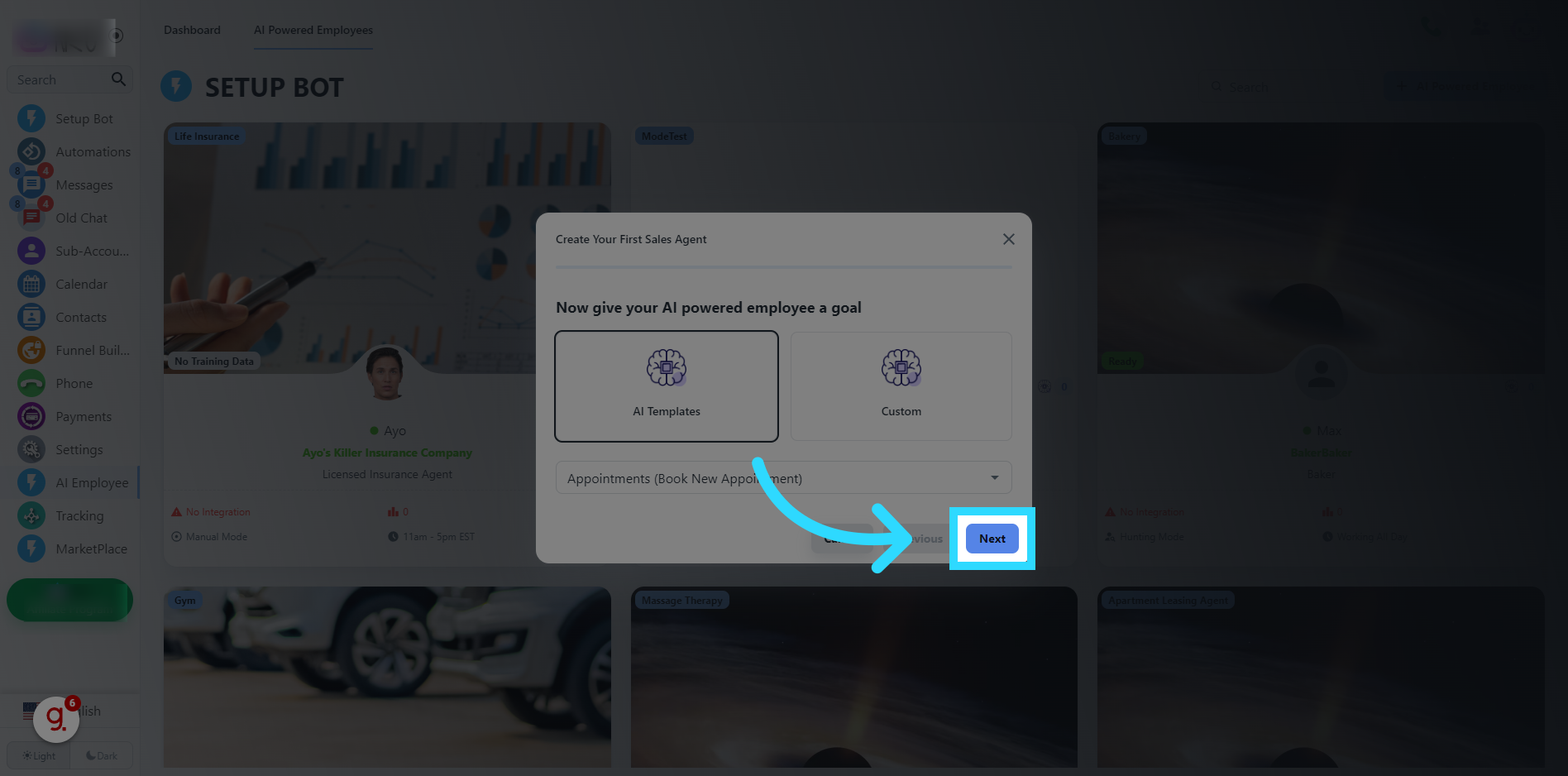
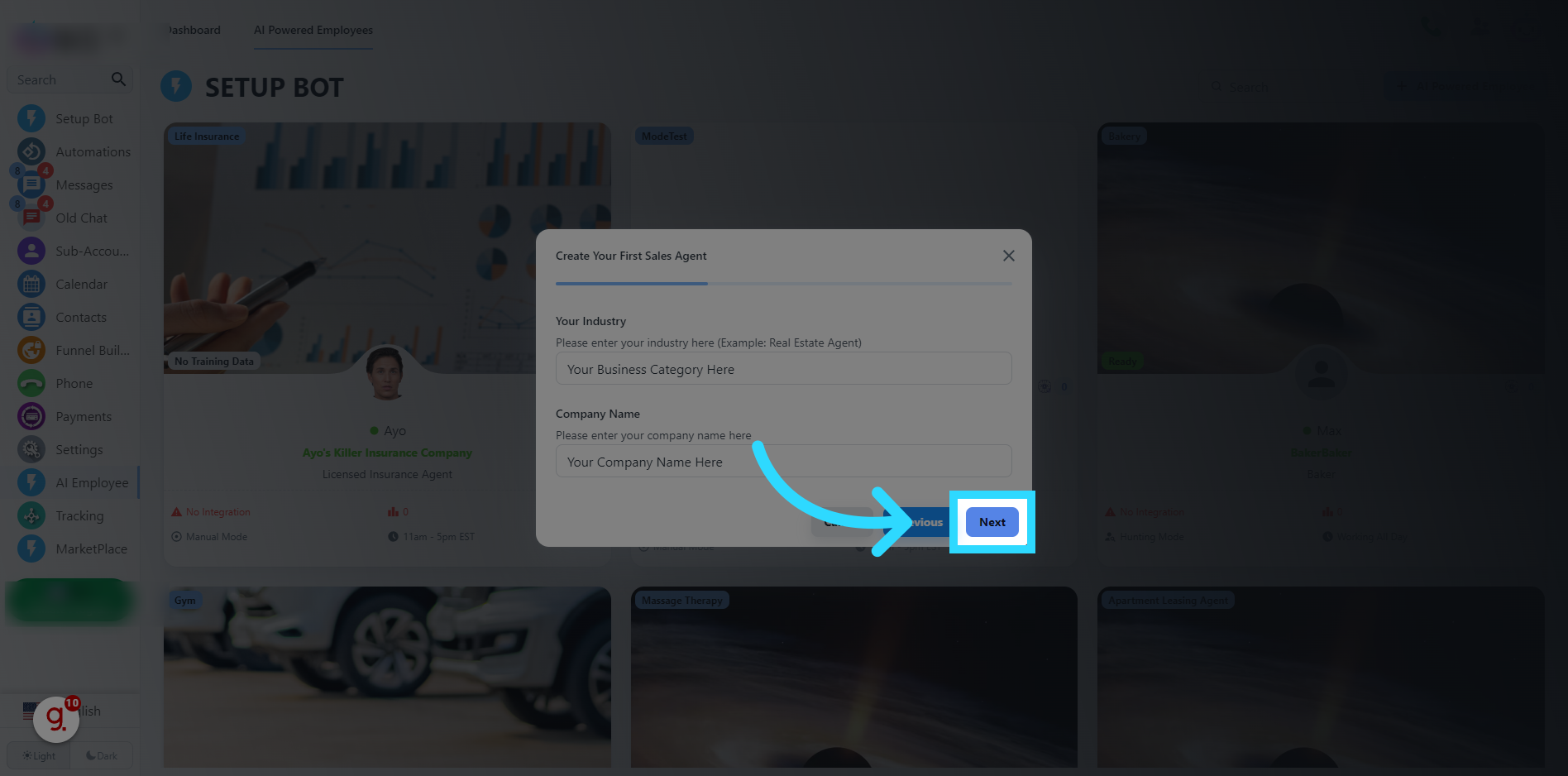
Fill "Your Business Category Here"
Enter your business category in the provided field. This will tell the AI Employee what type of business industry you are in.
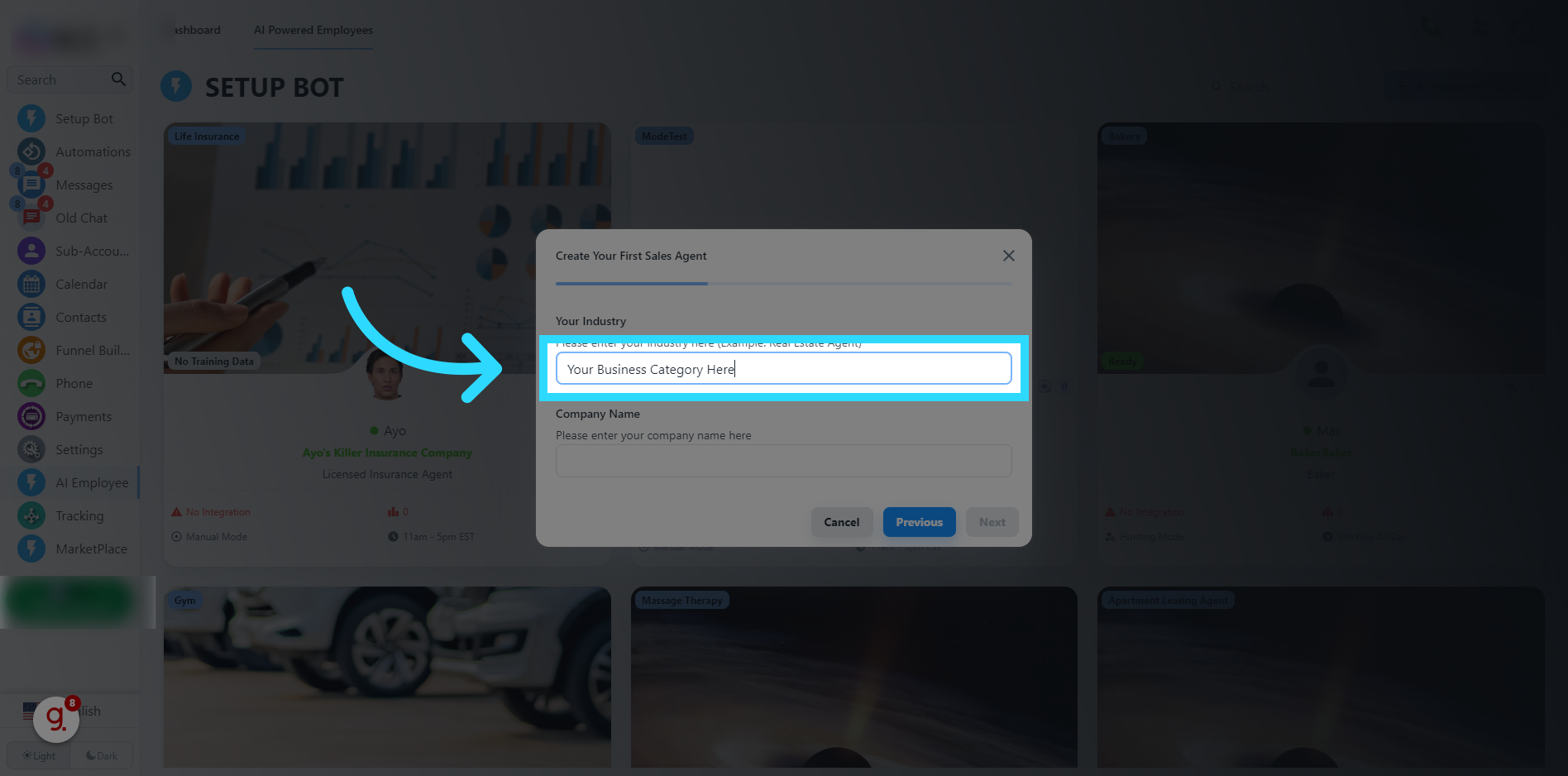
Fill "Your Company Name Here"
Enter your company name in the provided field. This tells the AI Employee what company it will work for.
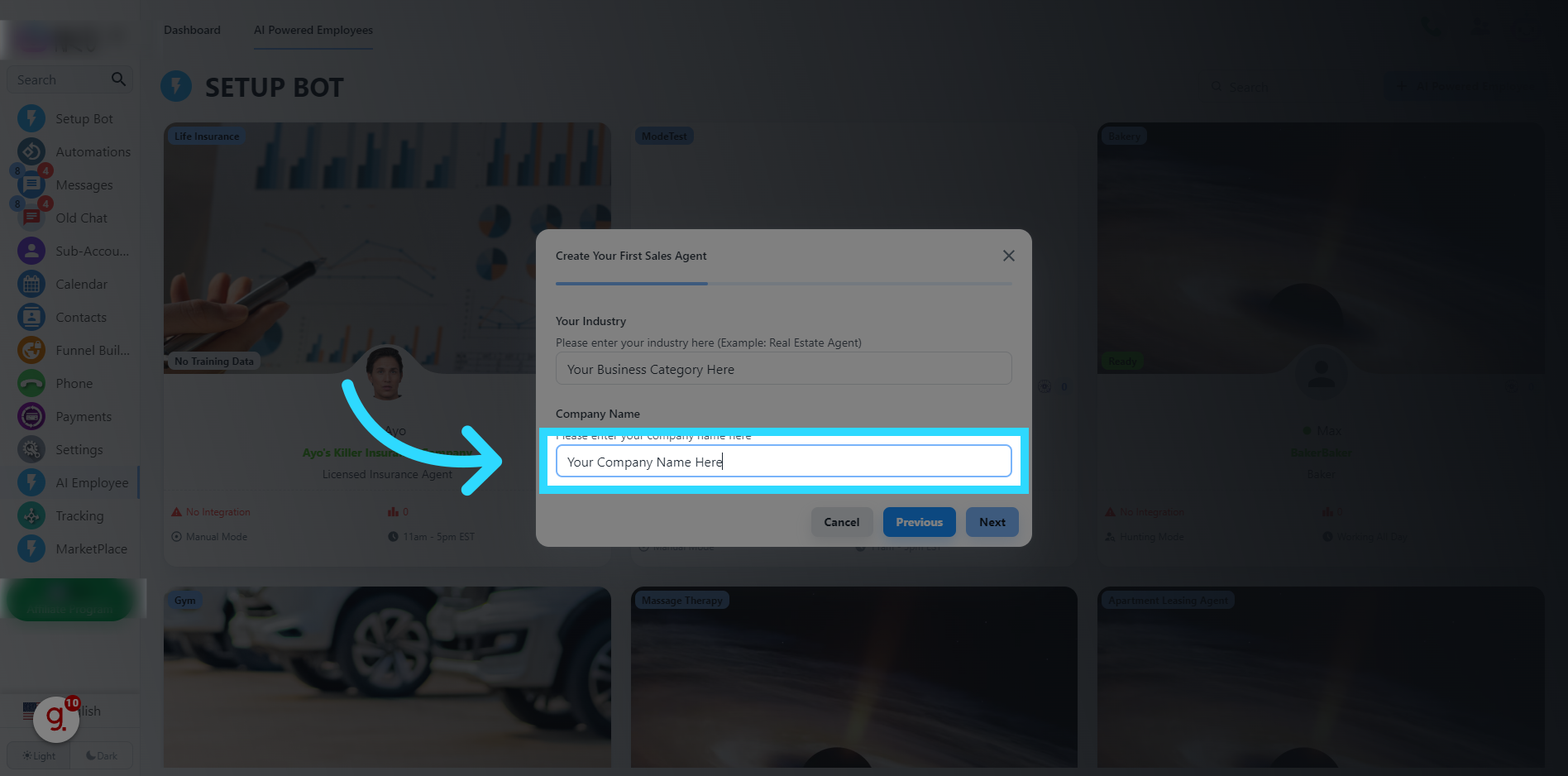
Click "Next"
Click on the "Next" button to continue.
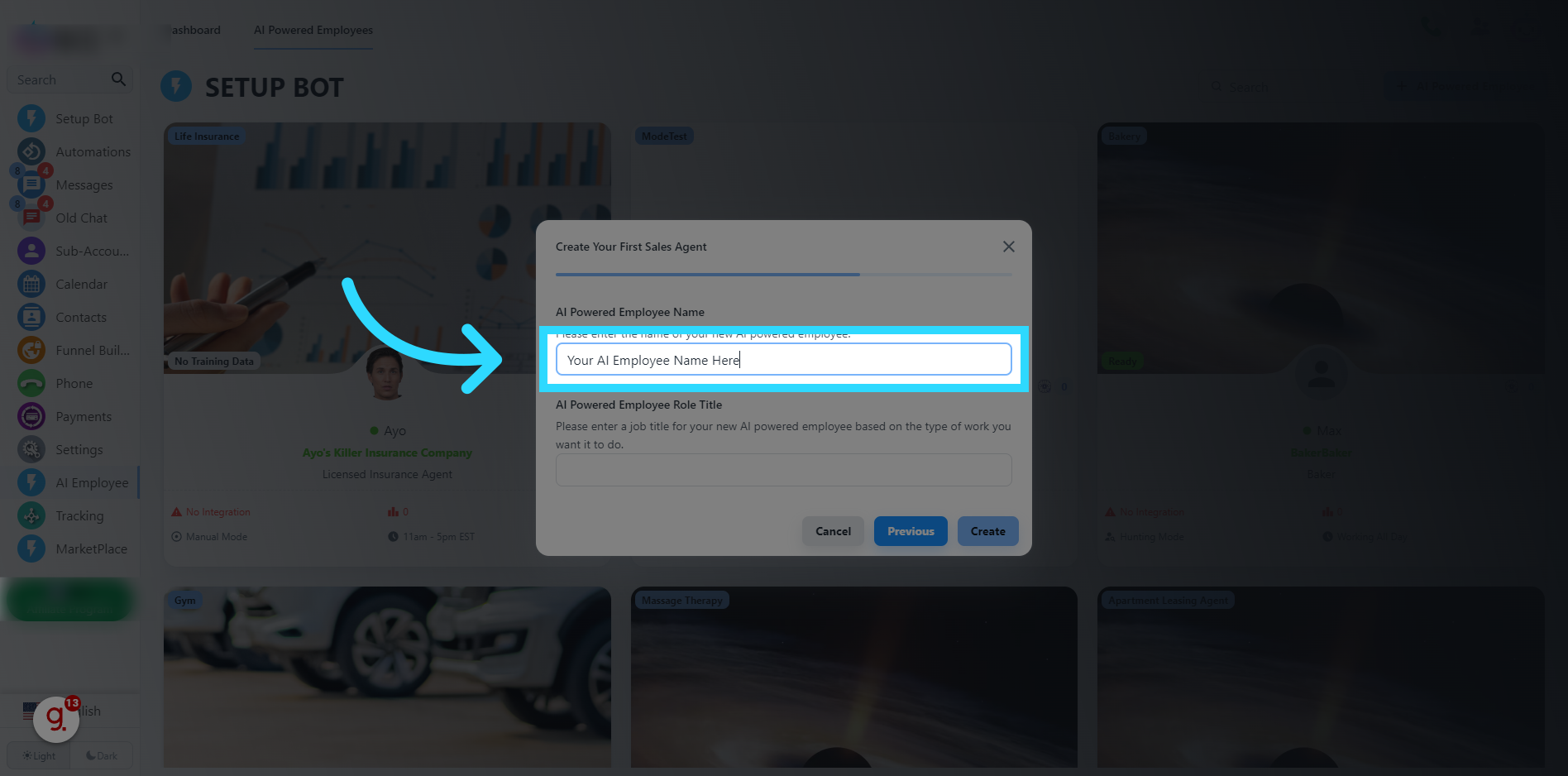
Fill "Your AI Employee Name Here"
Now choose a name for your AI Employee. We recommend giving it a name that no one has in your company, so you can identify when a customer is referencing a conversation it had with your AI Powered Employee.
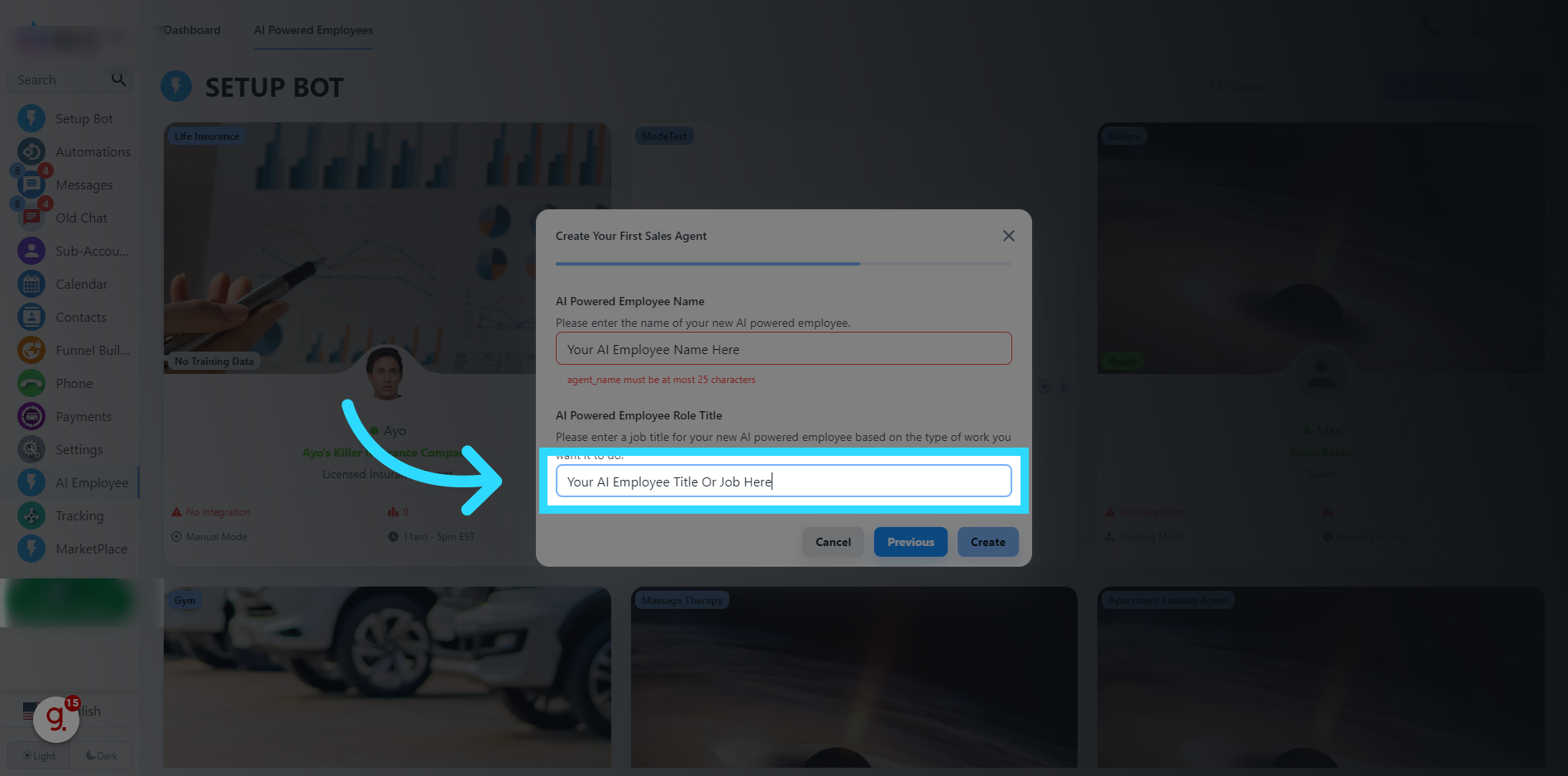
Fill "Your AI Employee Title Or Job Here"
Enter your AI employee's title or job in the provided field. Think of the title you would put on the business card for your AI Powered Employee, and put it here.
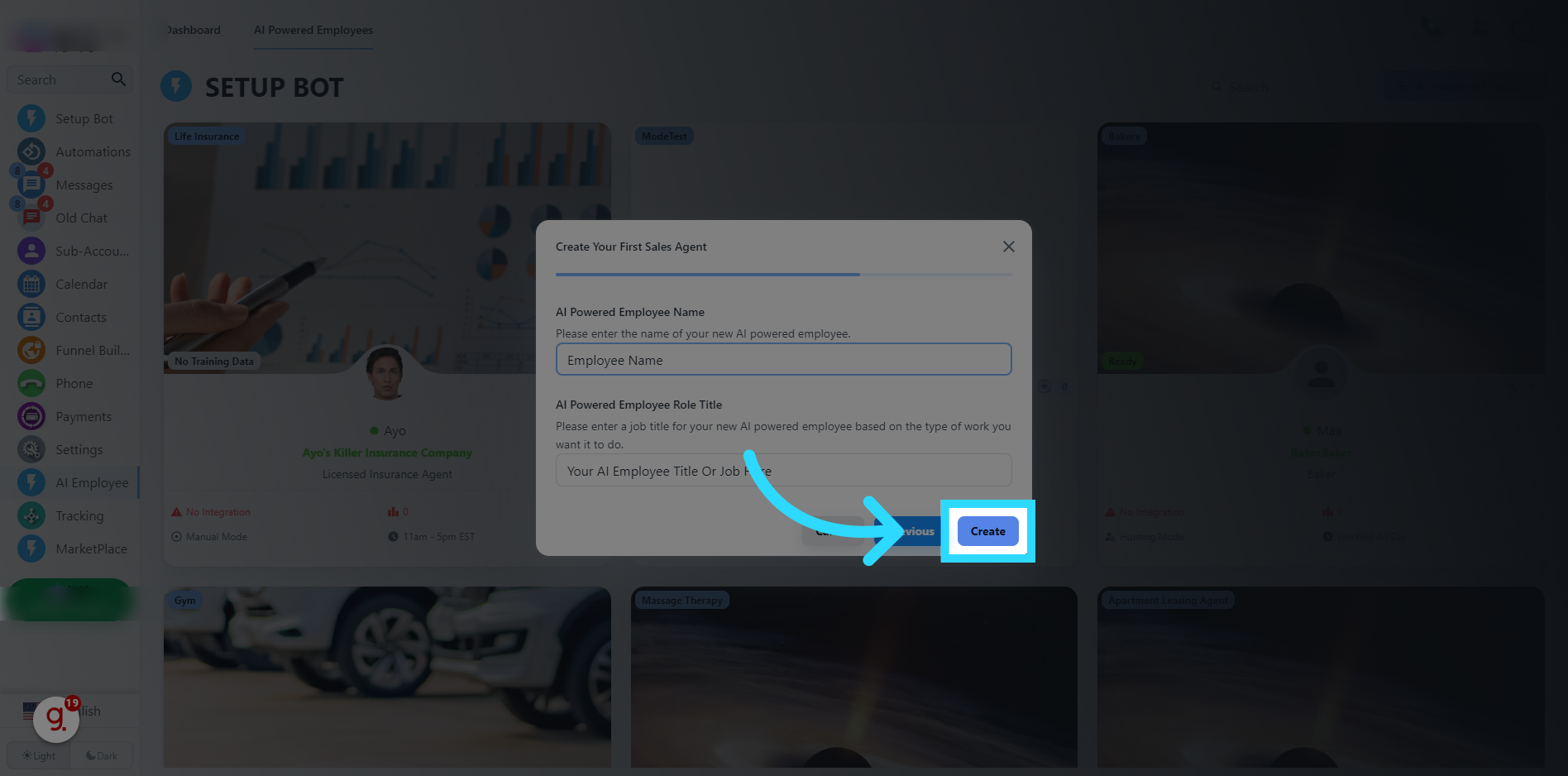
Click "Create"
Click on the "Create" button to start the AI Employee creation. This process can take a few minutes. So please be patient.
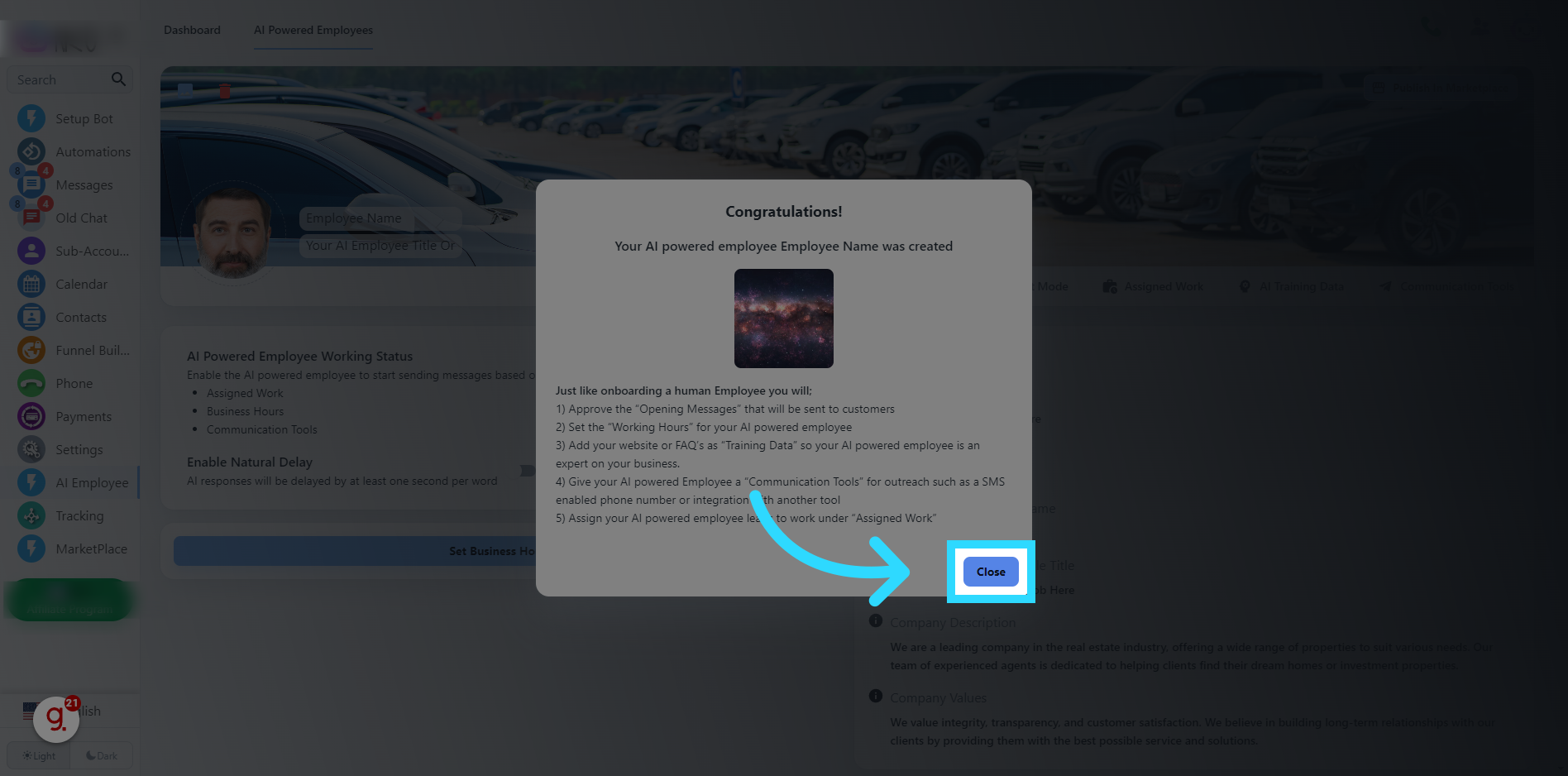
Click "Close"
This is a checklist of things to do before your employee can go live. This includes checking the opening messages. Setting the working hours of your AI Powered Employee. Adding your website and other data for your employee to learn. Assigning a phone number or communication channel. And finally setting how the AI Powered Employee knows who to talk to. This can be done automatically in "Hunting Mode" or "Manual Mode." To finish, click on the "Close" button.